01. Overview
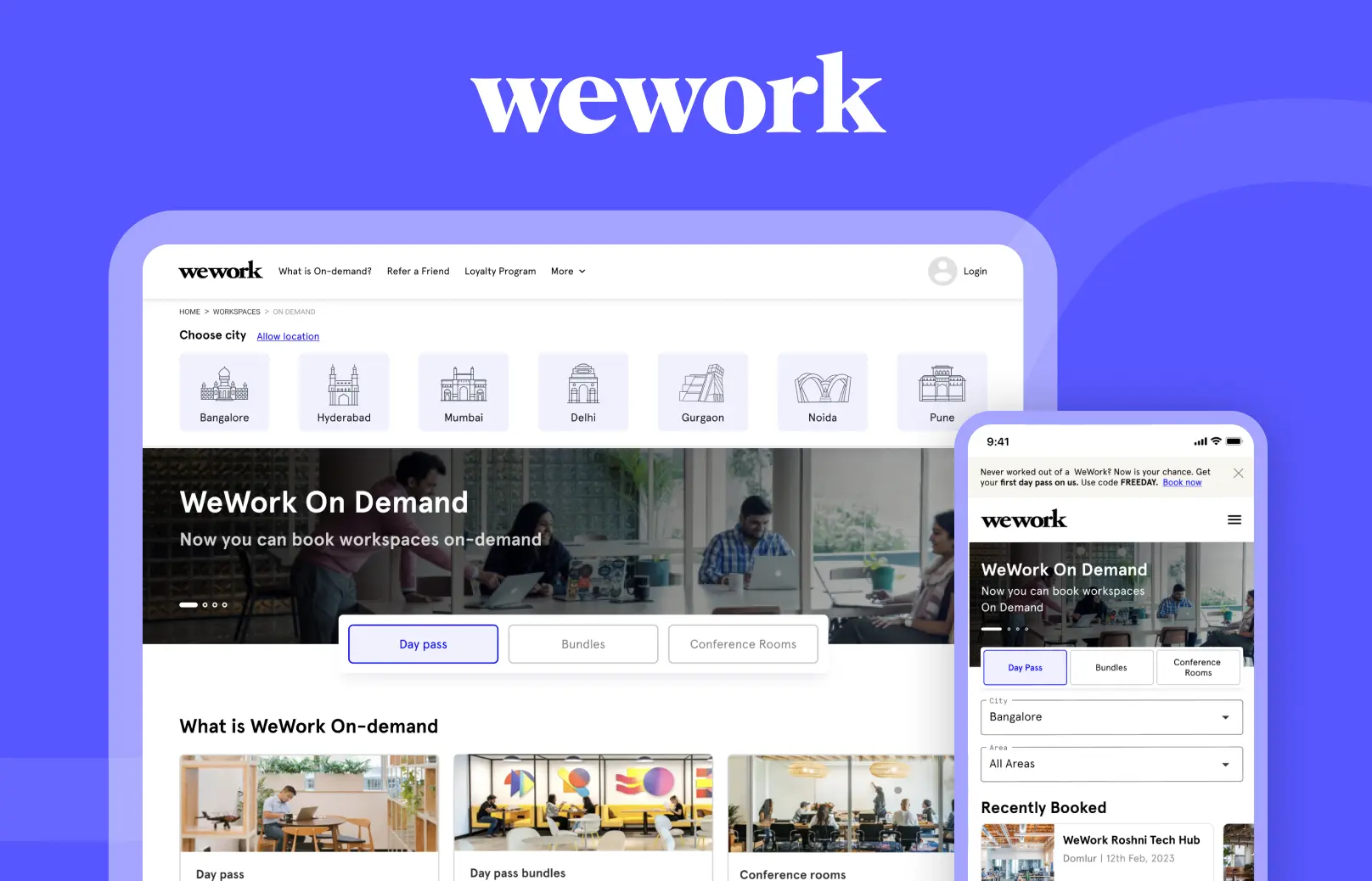
UX/UI DesignerWeWork On-Demand
B2C App

New Section
Start writing here...
Current Issues to Fix:
- Changes made in the builder are not reflecting in the preview.not reflecting in the preview.
- The preview is not working properly after creating a case study.
- Images are not displaying in the preview.
Required Improvements:
1. Preview Sync
- Ensure all changes made in the builder reflect instantly in the preview.
- The preview should always display the latest saved or edited content.
2. Media Support
- Fix image rendering so that uploaded images display correctly in preview.
-
Allow adding:
- Images
- GIFs
- Other supported media formats
3. Text Formatting Enhancements
-
Add options to:
- Change text color
- Add hyperlinks
- Apply basic formatting (bold, italic, etc.)
4. Table of Contents (ToC)
- In the text section, provide an option to enable “Table of Contents”.
-
When enabled:
- Admin should be able to manually enter ToC items.
-
Restriction:
- Only one Table of Contents can be active per case study at a time.
5. Mobile Responsiveness
- The entire experience (builder + preview + published case study) should be fully responsive.
-
Ensure proper layout and readability across:
- Mobile devices
- Tablets
- Desktop screens
Key Requirement:
-
Everything should work seamlessly:
- Builder → Save → Preview → Publish
- Ensure no mismatch between builder content and preview output across all devices.
New Section
New Section
Start writing here...Examples of popovers:
👉 Popover menu — It presents a set of options in a compact form. It typically appears when the user interacts with a specific trigger element, such as a button or icon. It is designed to be unobtrusive and contextually relevant to the user’s interaction.
Press enter or click to view image in full size

More Case Study